Getting started · Step 2 of 3
Add buildings
Add one building for each structure on the site: a tower, a villa, a podium block. Only the name is required. A code, type and sections help once the project grows.
Steps
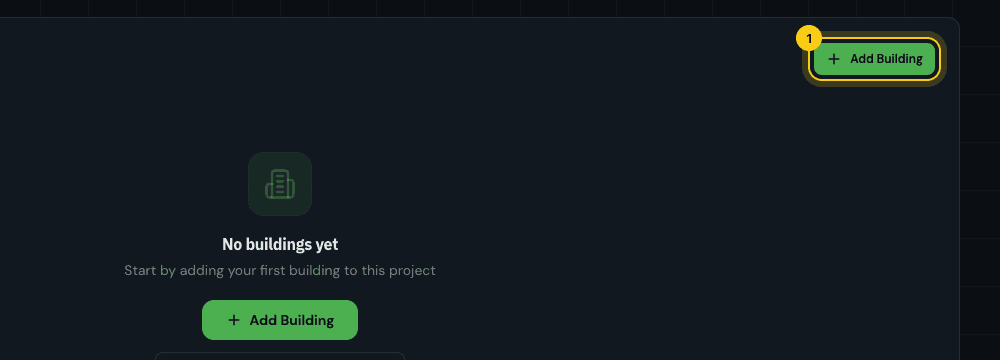
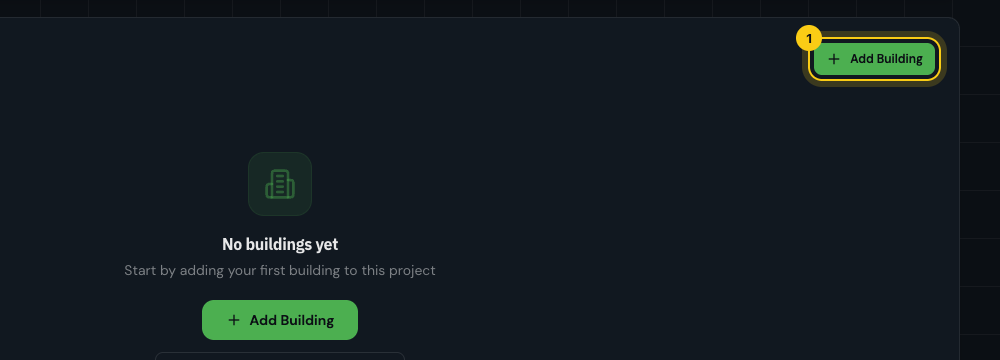
Open the project and click Add Building
Open the project from My Projects and scroll to the Buildings tab. Click Add Building at the top right of the tab. While the project is empty, there is a second button in the middle of the list.
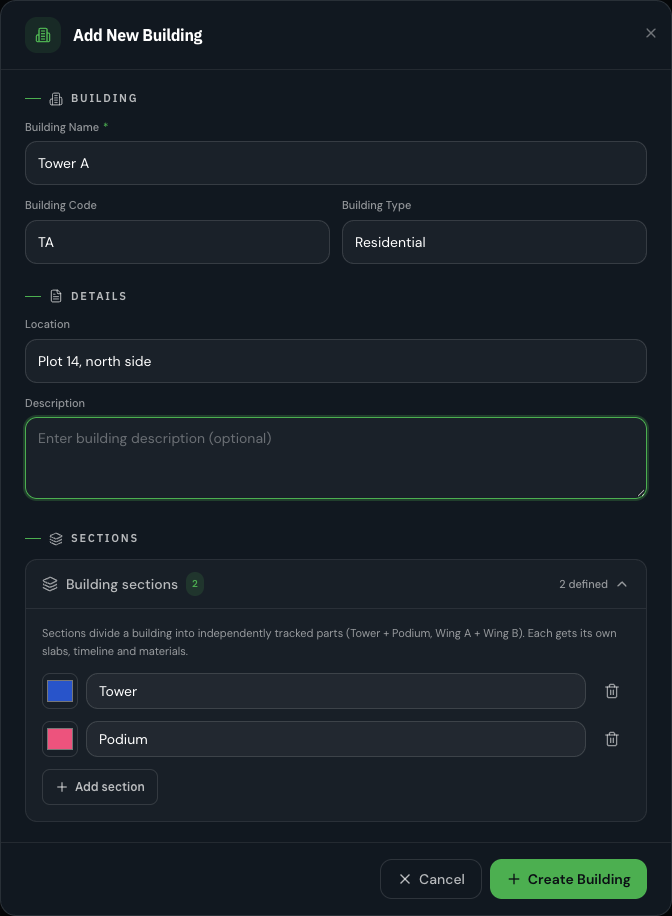
Name the building
Give the building the name your drawings use. Add a Building Code and Building Type if you have them. If the building is built in independent parts, open Building sections and add one row per part.
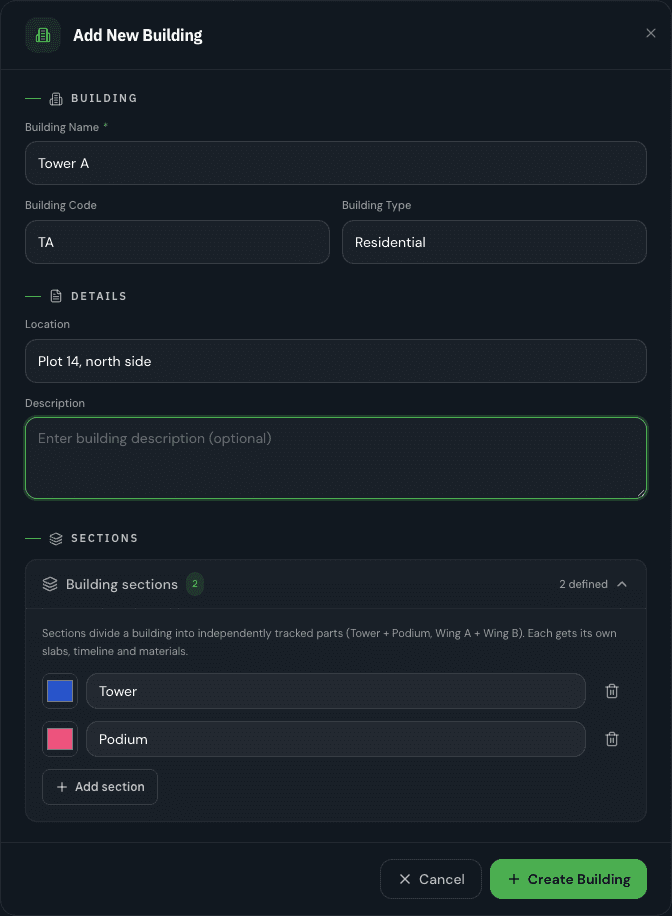
Tower A, split into a Tower and a Podium section. Click Create Building
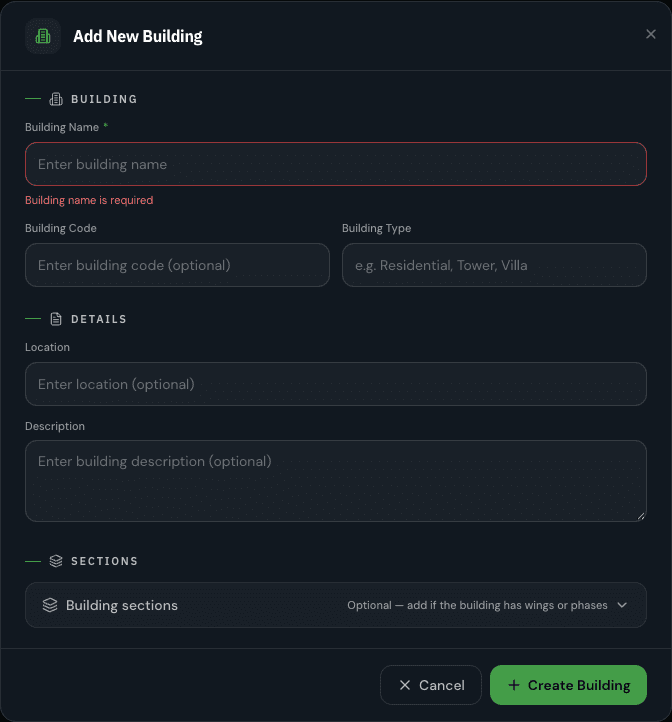
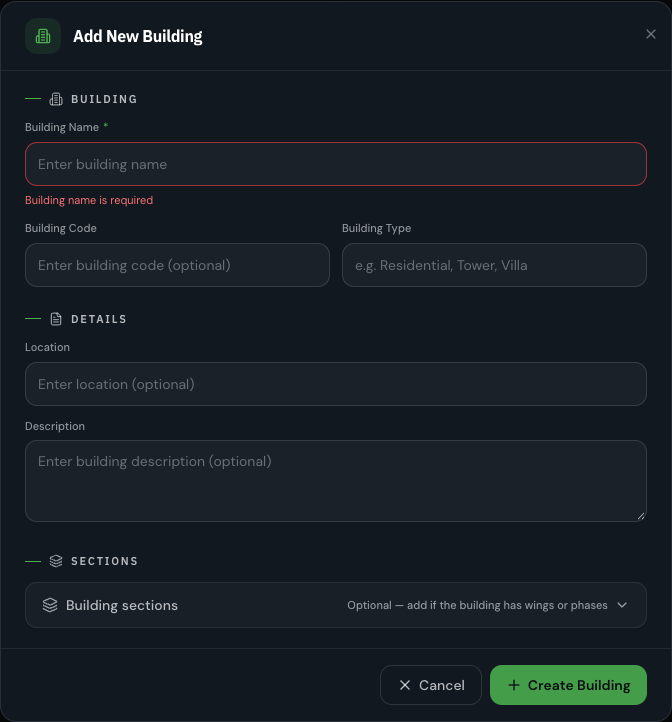
The building name is the only field PlyMax insists on. Without it, the form shows this:
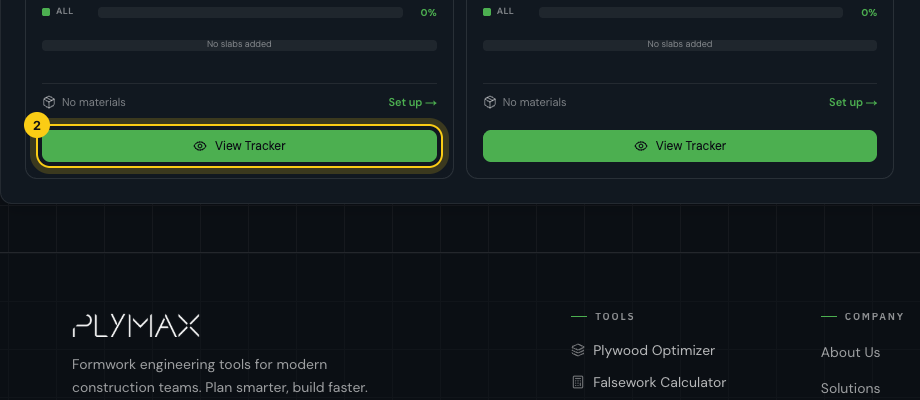
Repeat for each building, then open the tracker
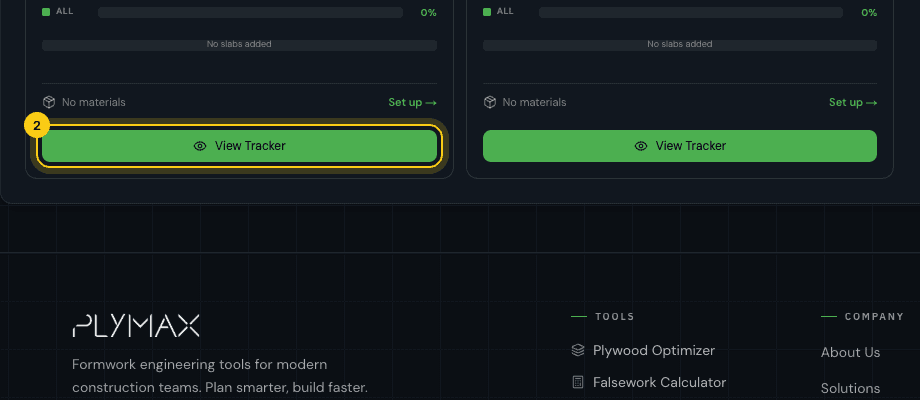
Each building gets a card on the project page and starts in Planning. When the list is complete, click View Tracker on a building's card to add its slabs.
Field reference
| Field | What to enter |
|---|---|
Building Name Required | What the site calls it, e.g. “Tower A” or “Villa”. |
Group Optional | Only shown when the project has groups, such as Phase 1 or Zone North. Create groups from the Groups button above the building list. |
Building Code Optional | A short code from your drawings, e.g. TA. Needed when two buildings share a name — see below. |
Building Type Optional | Residential, Tower, Villa… Used to filter the building list. |
Location Optional | Plot number or position on site. |
Description Optional | Any note for the team. |
Building sections Optional | Splits the building into parts that are tracked separately (Tower + Podium, Wing A + Wing B). Each section gets its own slabs, timeline and materials. If you add sections, each one needs a name. |
Buildings with the same name
Repeating a name is fine — a compound of twenty villas can be twenty buildings called “Villa”. PlyMax tells buildings apart by name, code and type together. If a new building matches an existing one on all three, the form asks for a different Building Code and offers one you can accept with a click.
Many buildings at once